Blueprint API
Drive PVLK Actors from Your Own Blueprints, in the Editor and at Runtime
C++ API documentation coming soon!
Blueprints
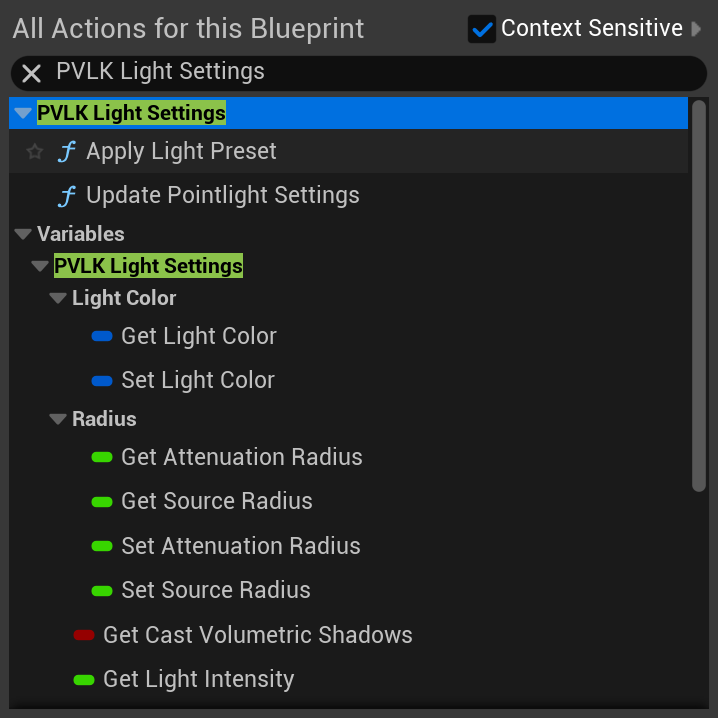
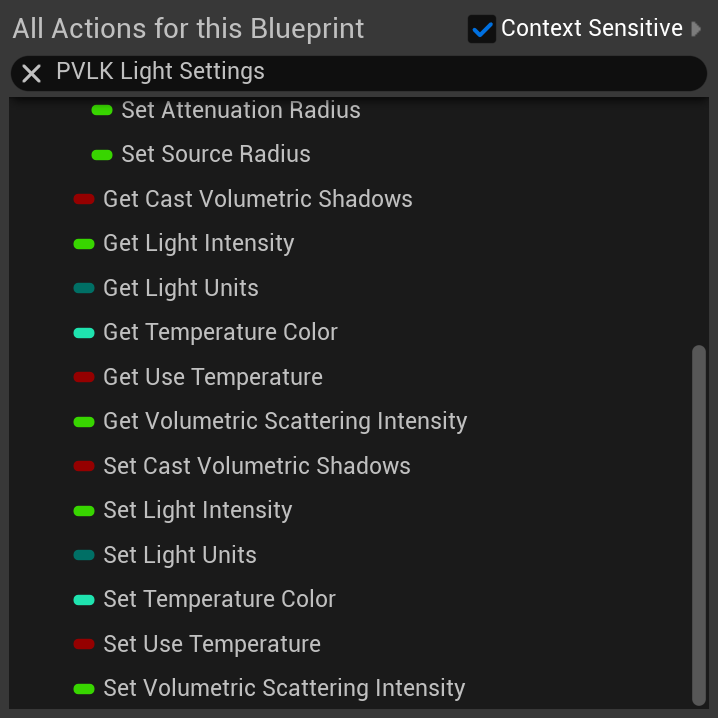
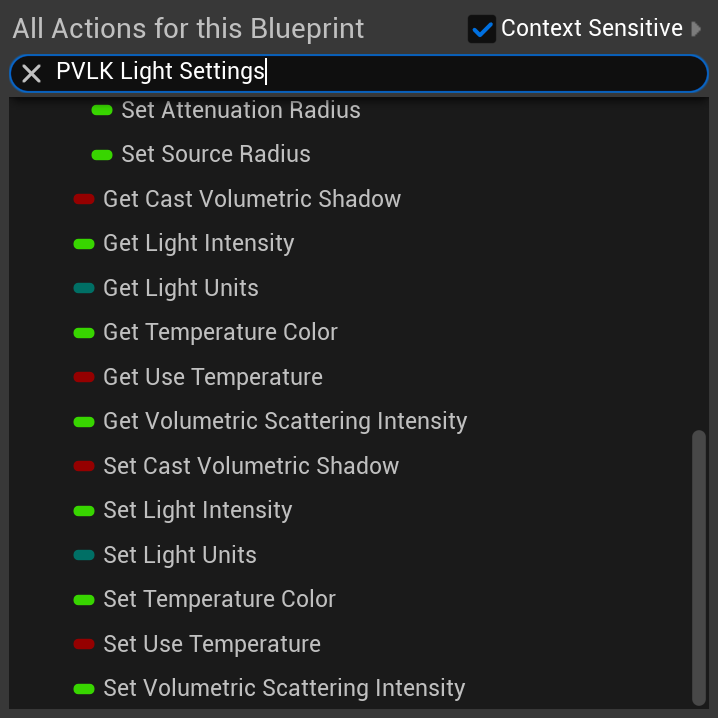
When searching for the PVLK based nodes in the actor blueprint, typing in "PVLK Light Settings" isolates only the setters and variables that pertain to PVLK. You search for them by right-clicking in the Event Graph and type in PVLK Light Settings. When wanting to change a setting in real time, there's no need to use the variables, use the light's setter functions instead (shown with the 𝑓 next to them).
Blueprint Nodes
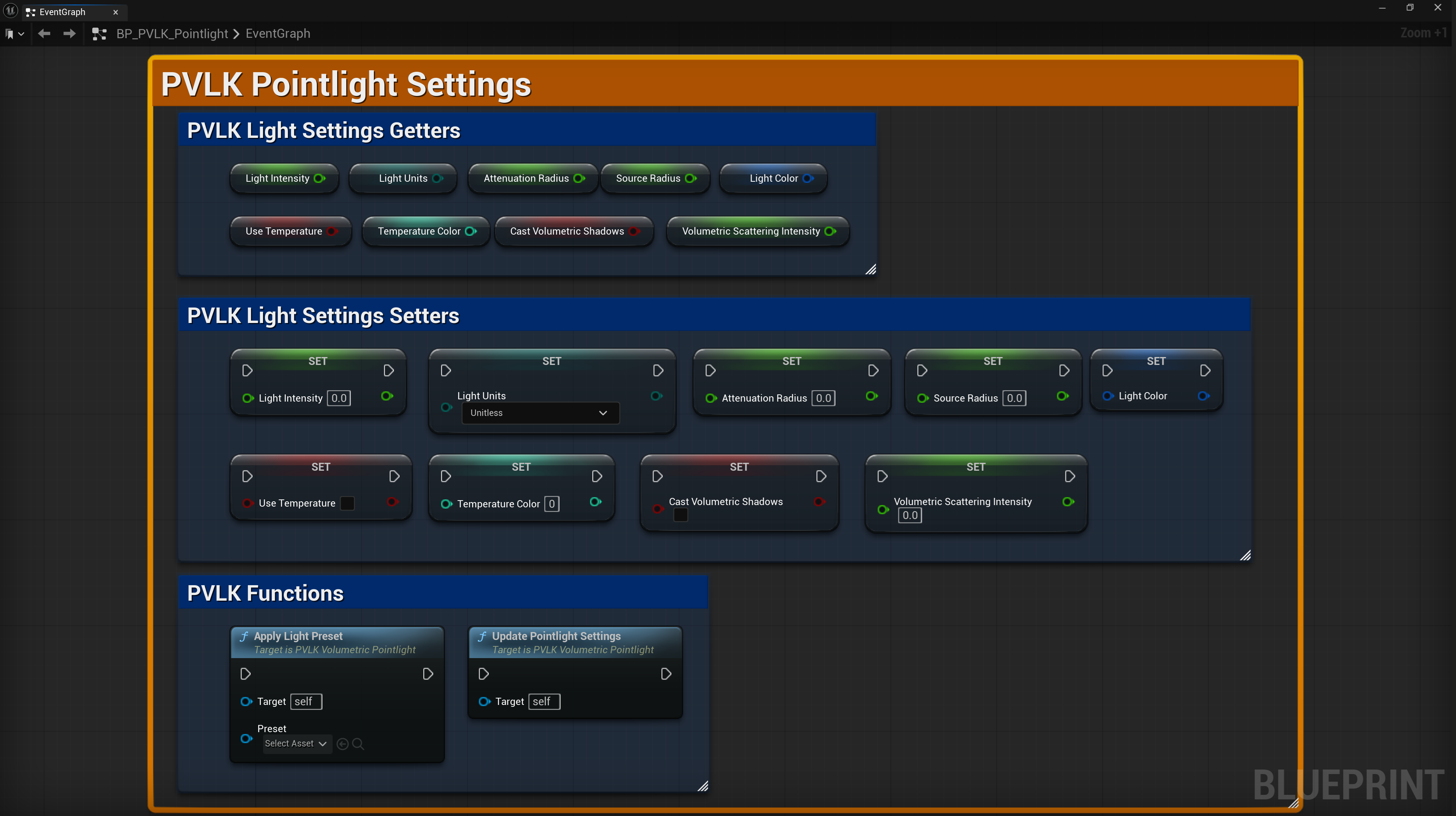
These are the available blueprint nodes for all of the PVLK Light Actors and the Volumetric Setups Actors. These act as our Getters and Setters, which allow the properties to be read from or written to in the Event Graph. These can be applied in real time (like when stepping on a pressure plate, the light color will smoothly change from green to red), or anytime (in BeginPlay for example).
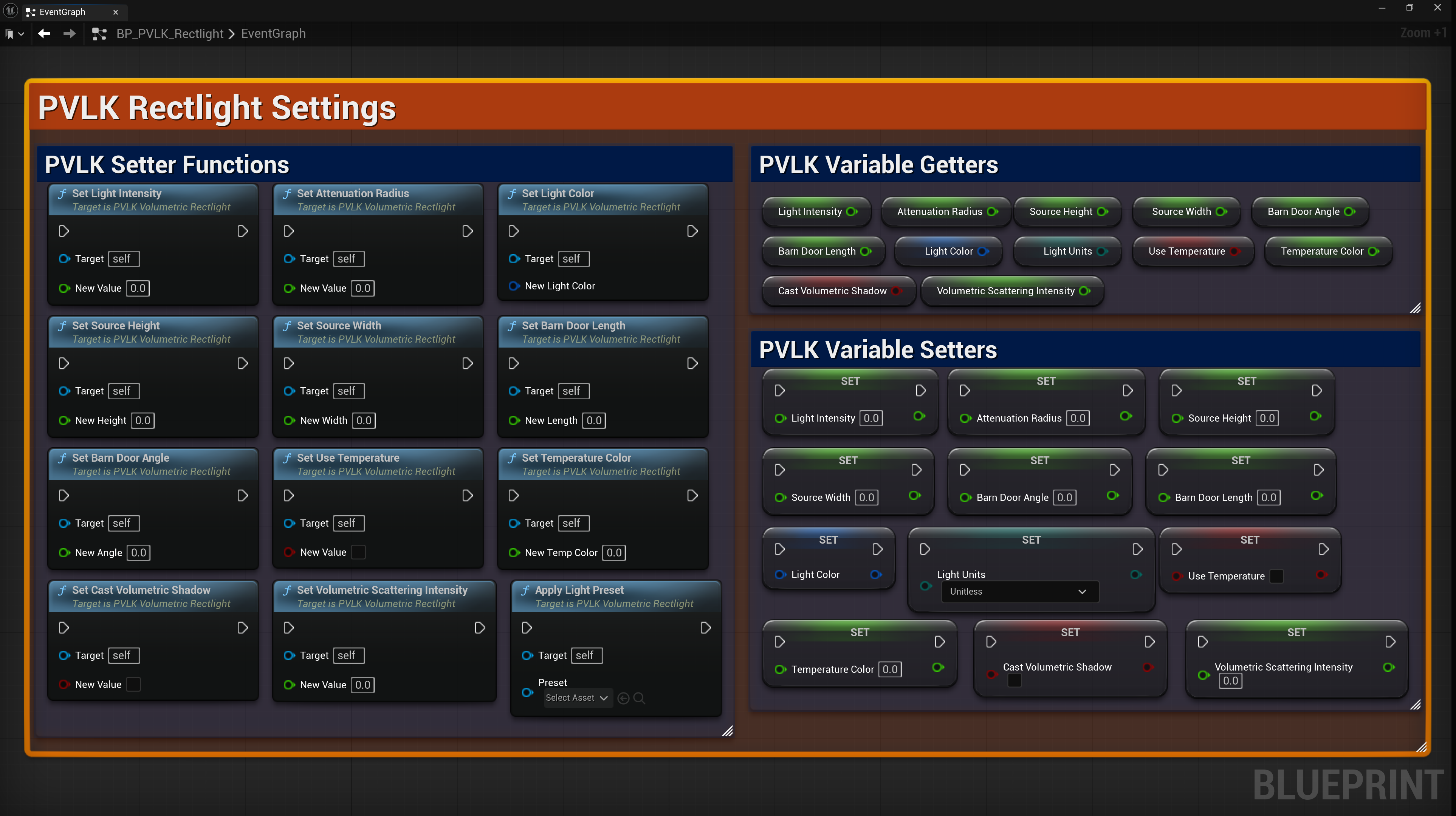
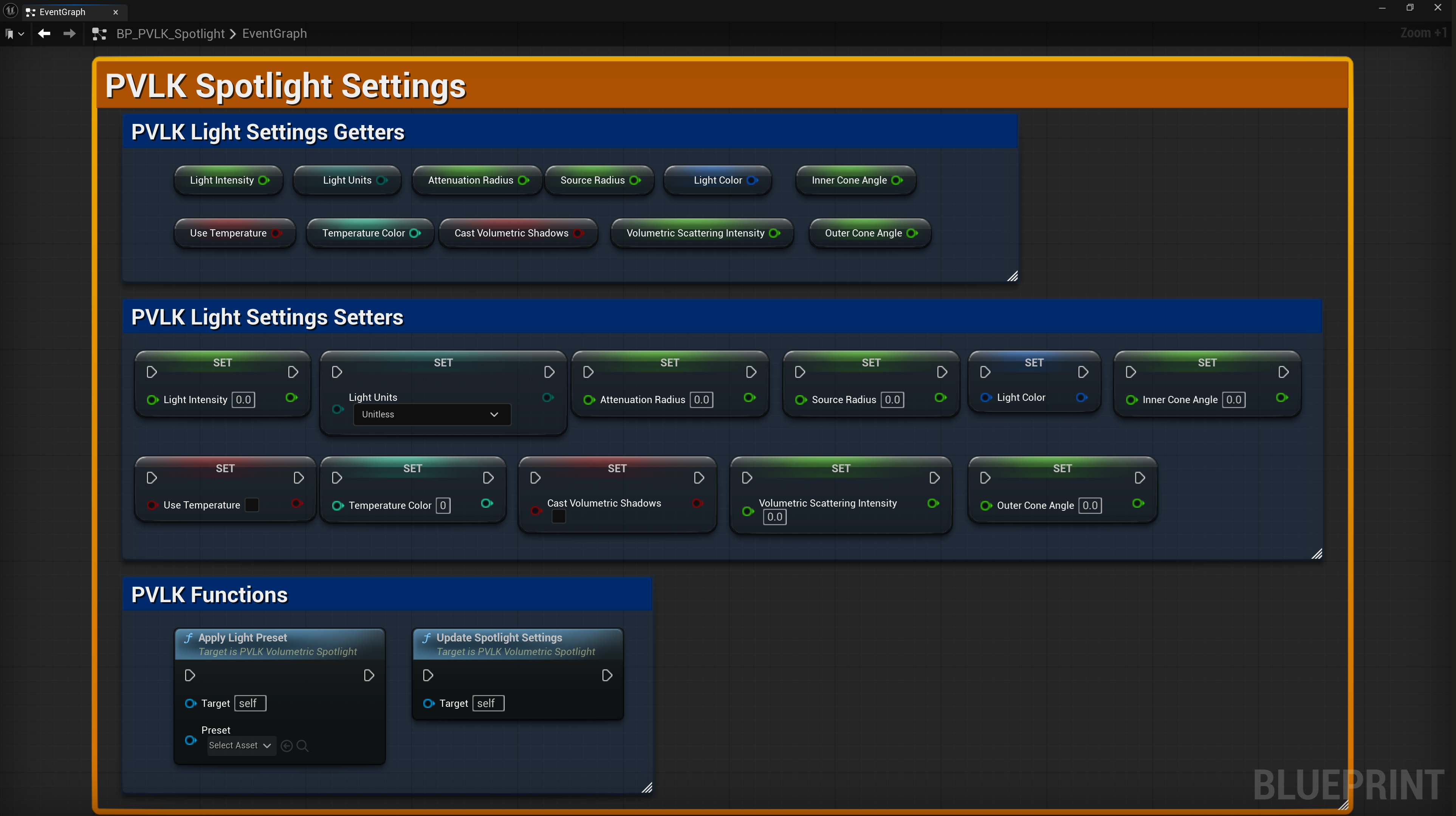
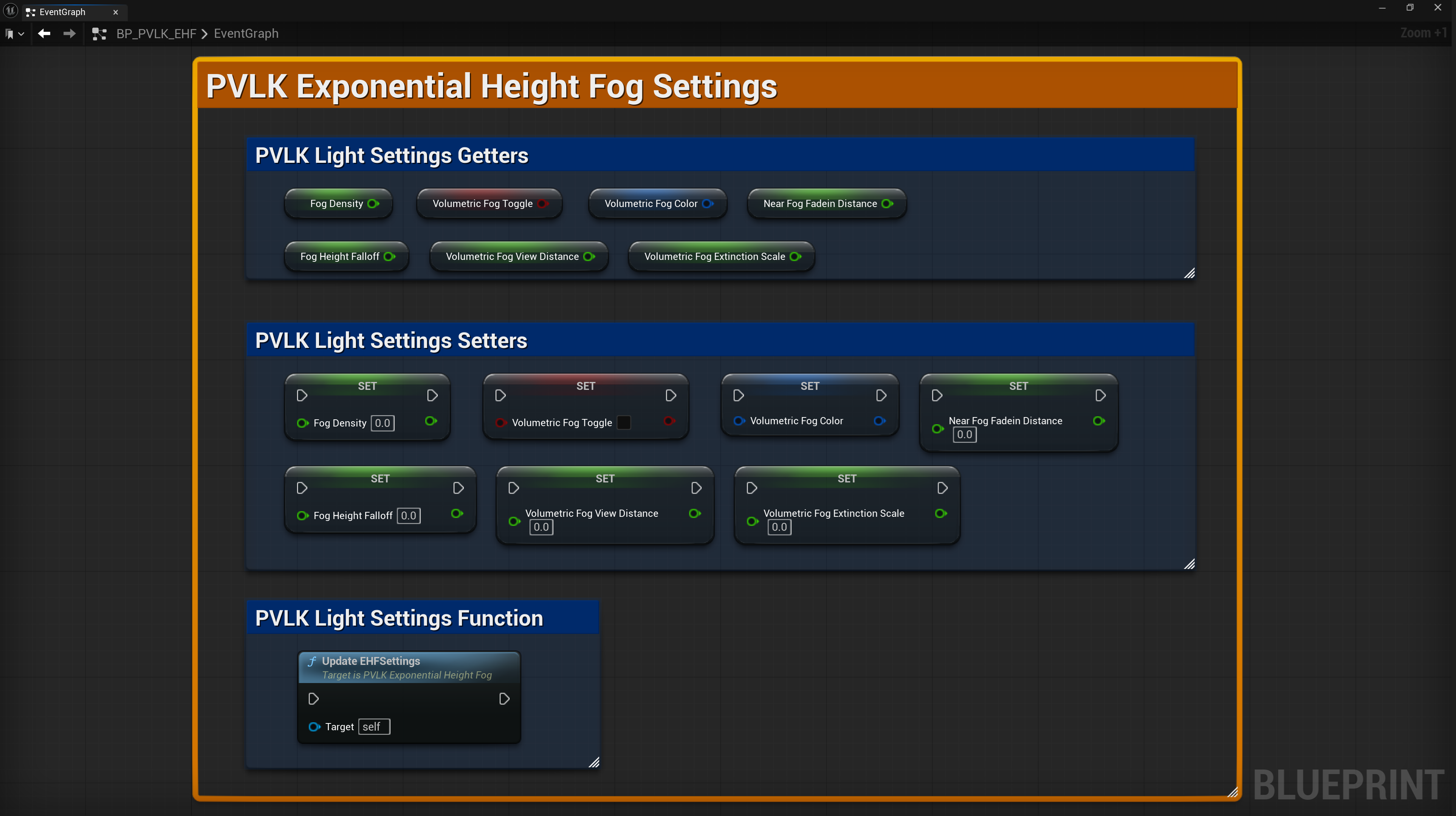
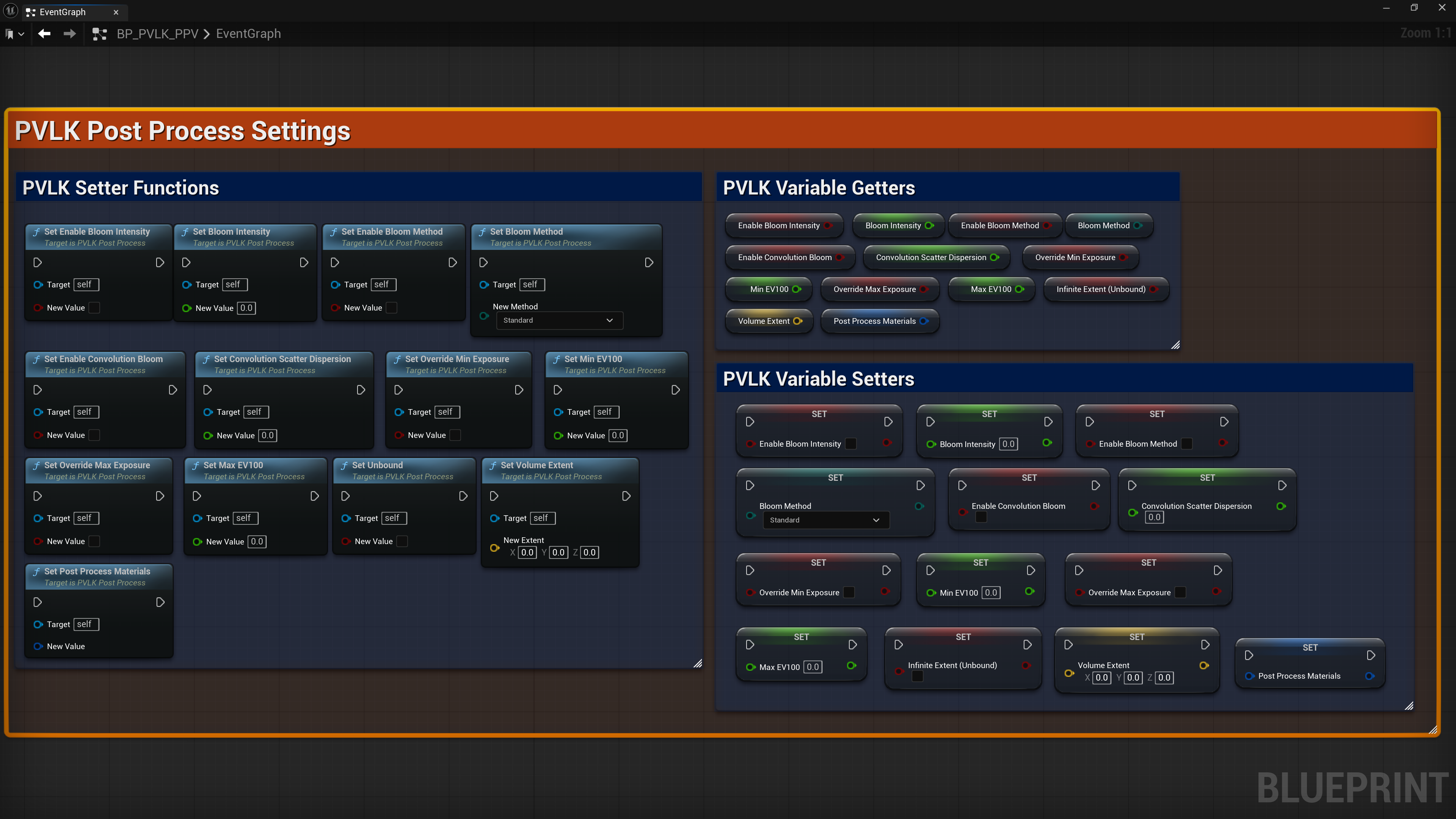
Changing settings at runtime
Example - turn a light red and brighter when the player crosses a trigger:
Event ActorBeginOverlap (Box Collision)
  → Set Light Color = Red
  → Set Light Intensity = 50.0
Same for switching the lights back:
Event ActorEndOverlap (Box Collision)
  → Set Light Color = White (Default)
  → Set Light Intensity = 16.0 (Default)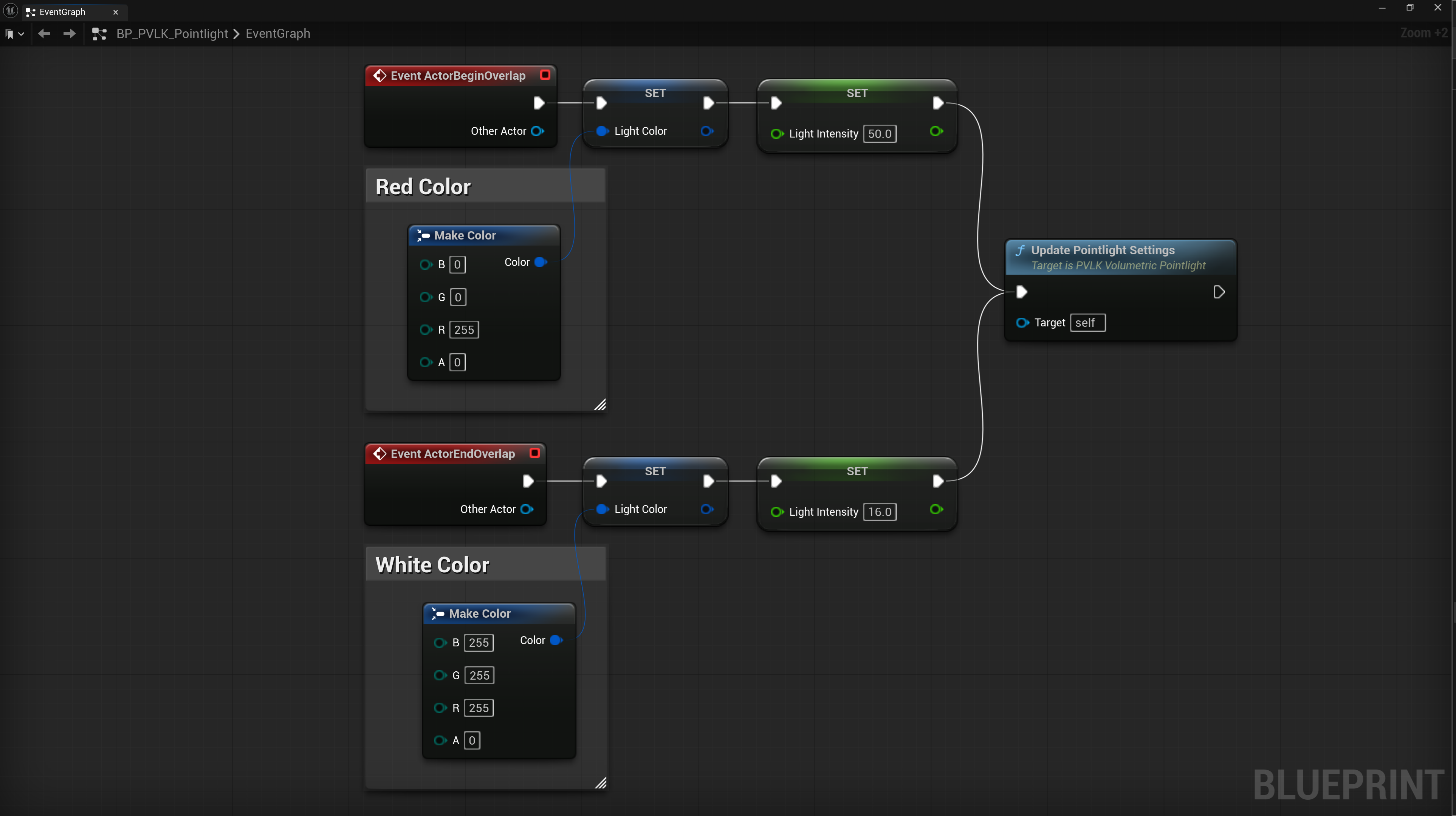
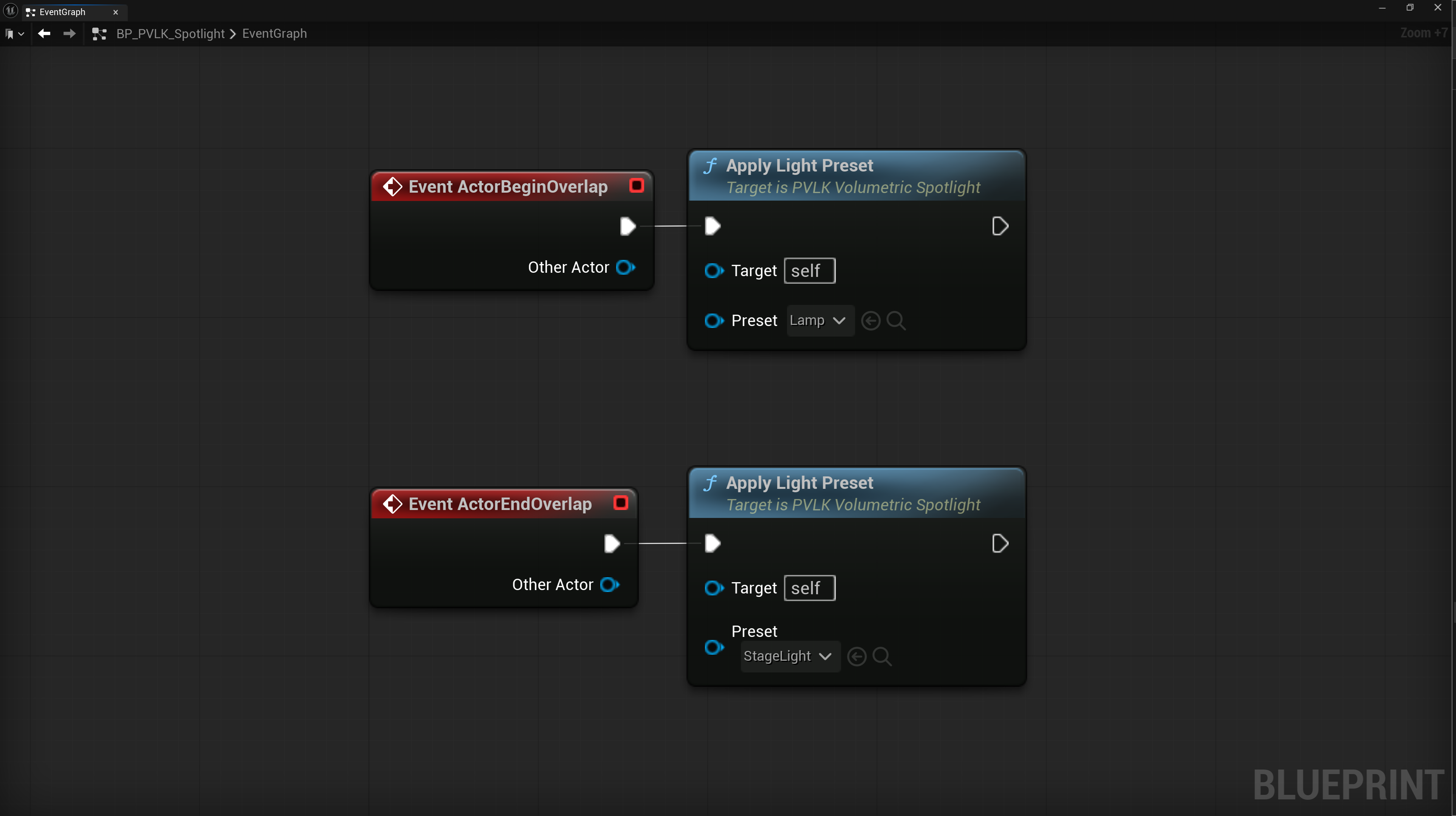
Applying presets at runtime
Each light actor also has Apply Light Preset, which takes a
PVLK Light Preset data asset and applies its enabled properties.
This allows you to swap a Spotlight from "Stagelight" to "Lamp" with one node.
Using the components directly
The PVLK volumetric light components are Blueprint-spawnable: in any actor Blueprint,
Add Component and search "PVLK". A component used this way exposes its full
settings (nothing grayed out) and answers to the standard component setters -
Set Intensity, Set Light Color,
Set Volumetric Scattering Intensity, etc.
Spawning lights at runtime
Spawn any PVLK light class (or your duplicated Blueprints) with a standard
Spawn Actor from Class node - all settings apply on spawn, and presets can be
applied right after with Apply Light Preset.