Light Actors
The Three PVLK Lights and the Light Library That's Populated by Them
PVLK Light Actor
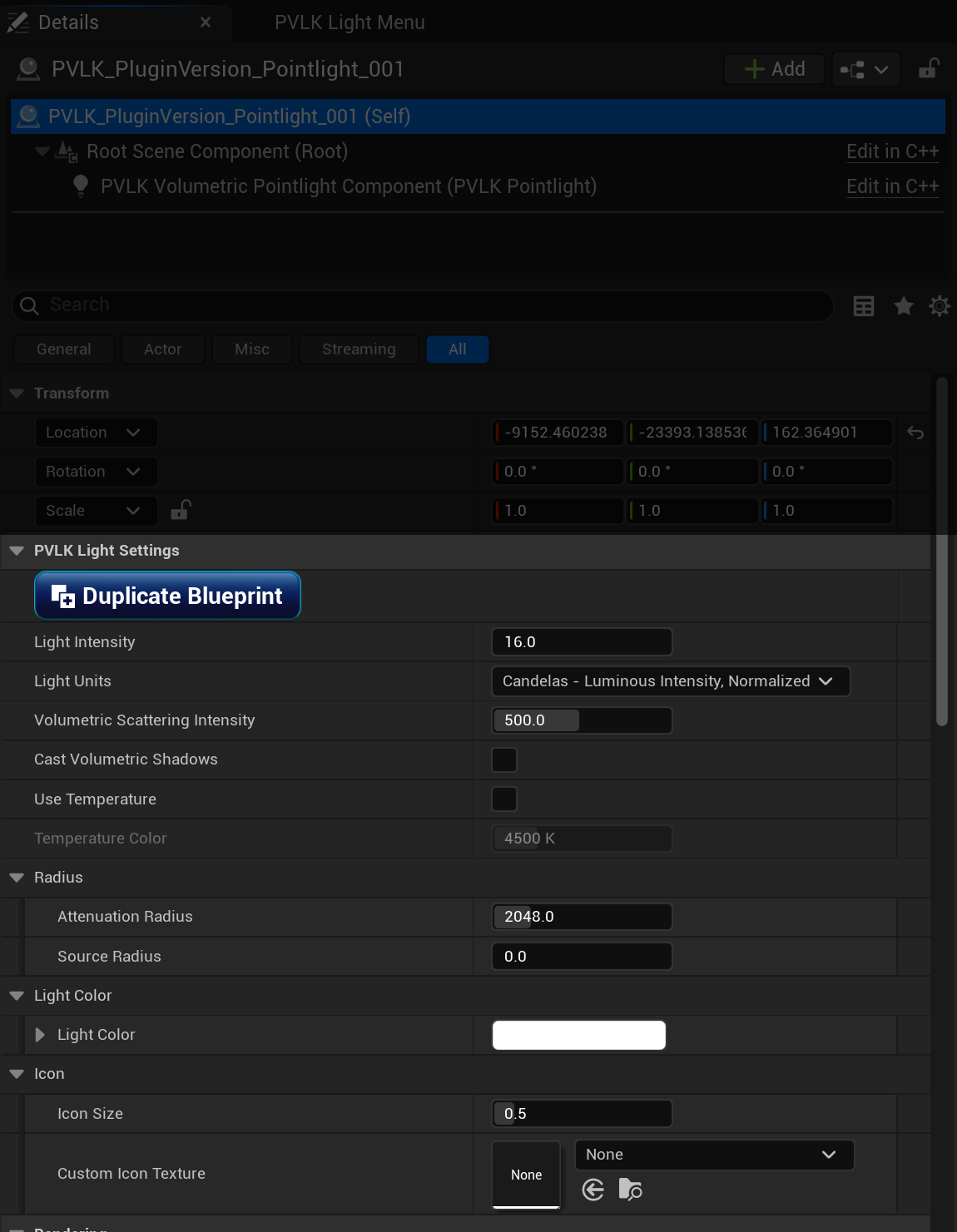
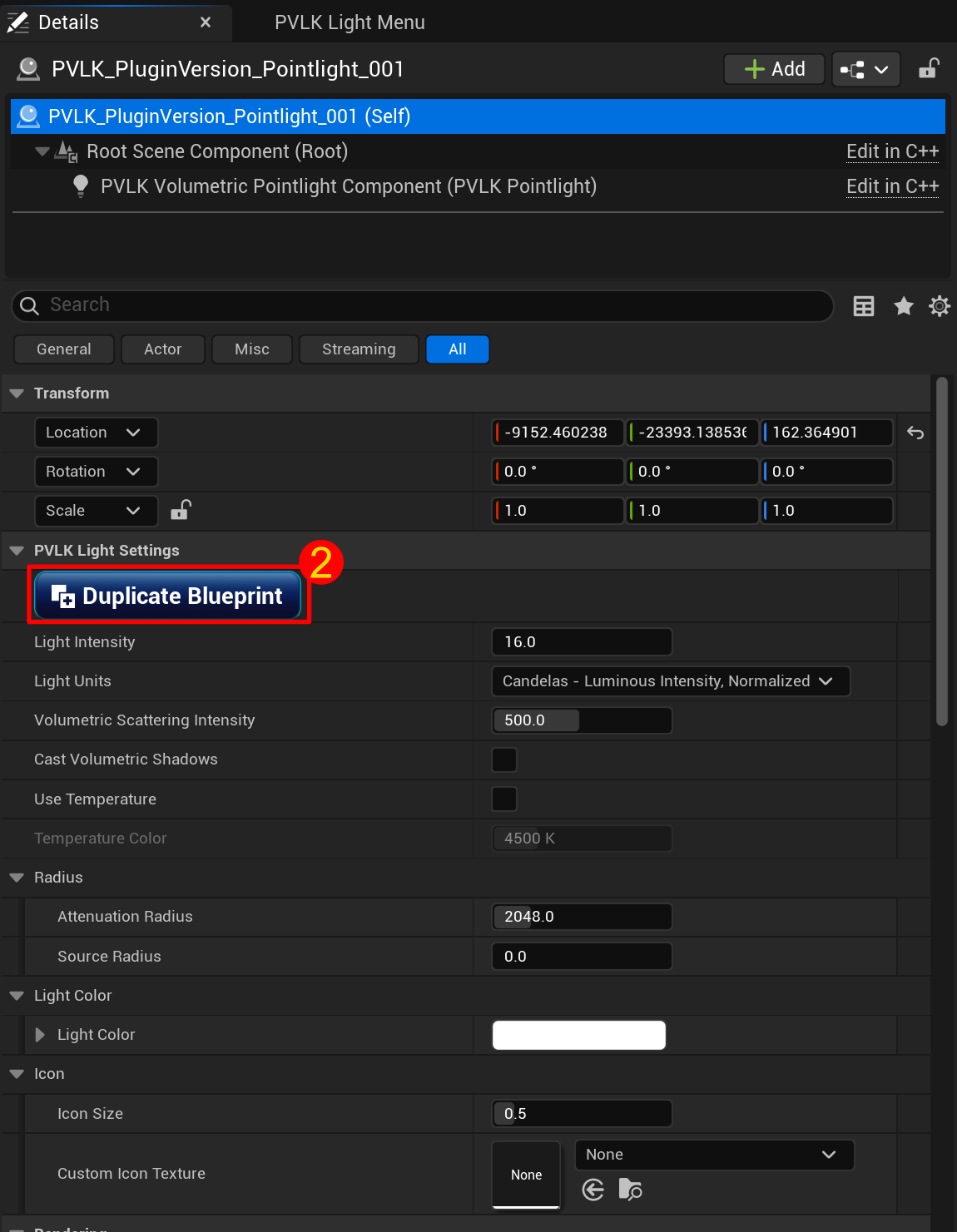
When clicking on any of the PVLK Light Actor's instances in the level, you will see the Details Panel
showing at the top, the PVLK Light Settings. These settings are some of the more widely used settings to help
you focus on creation, especially with volumetrics in mind. You can change these settings to create your own custom light.
There's also the  button. This is how you can create a duplicate copy of all the
settings you've changed, into a brand new blueprint.
button. This is how you can create a duplicate copy of all the
settings you've changed, into a brand new blueprint.
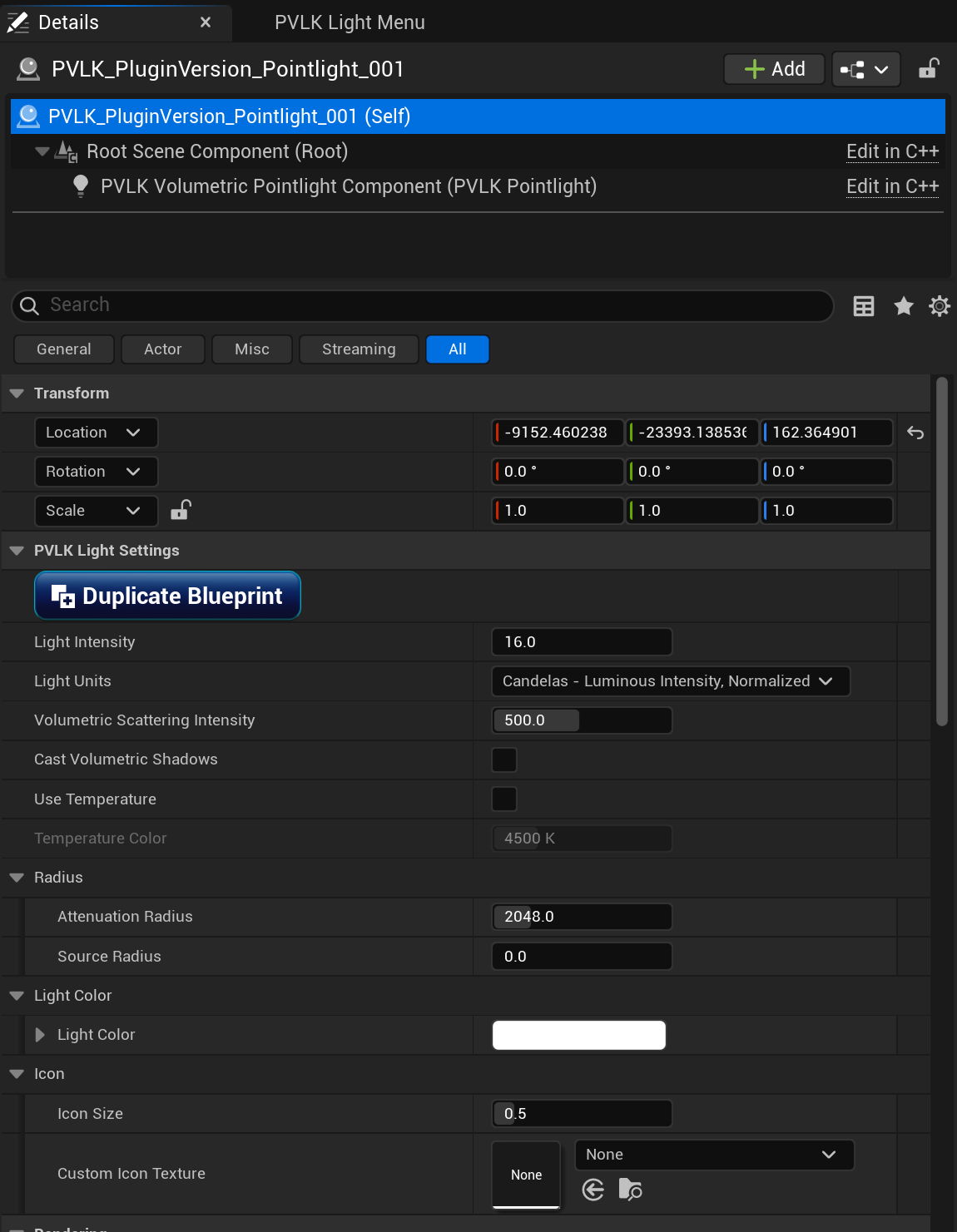
PVLK Light Settings
1. These are all the most commonly used properties exposed at the surface to help focus on creation and less time on sifting through all of the settings. Properties like Volumetric Scattering Intensity, Light Color, and even the icon can be changed and duplicated.
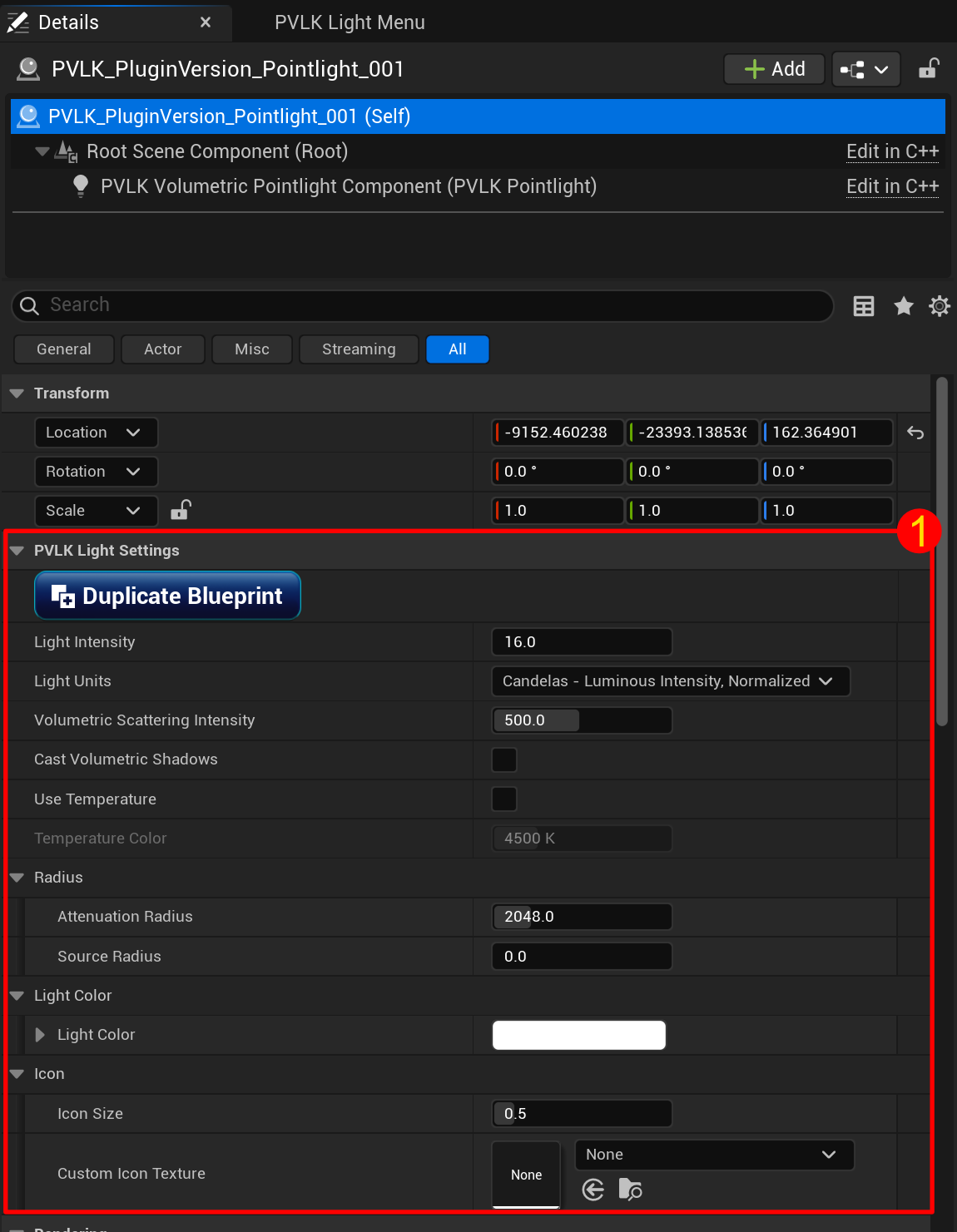
PVLK Light Actor's Component
On the component, the grayed out settings are the same ones that the actor manipulates, so there's no need to have access to these. However, all of the other settings (like soft source radius, indirect lighting intensity, etc.) on the component are still adjustable and carry over on the duplicated blueprint. To read more about components, check out the Light Components section.
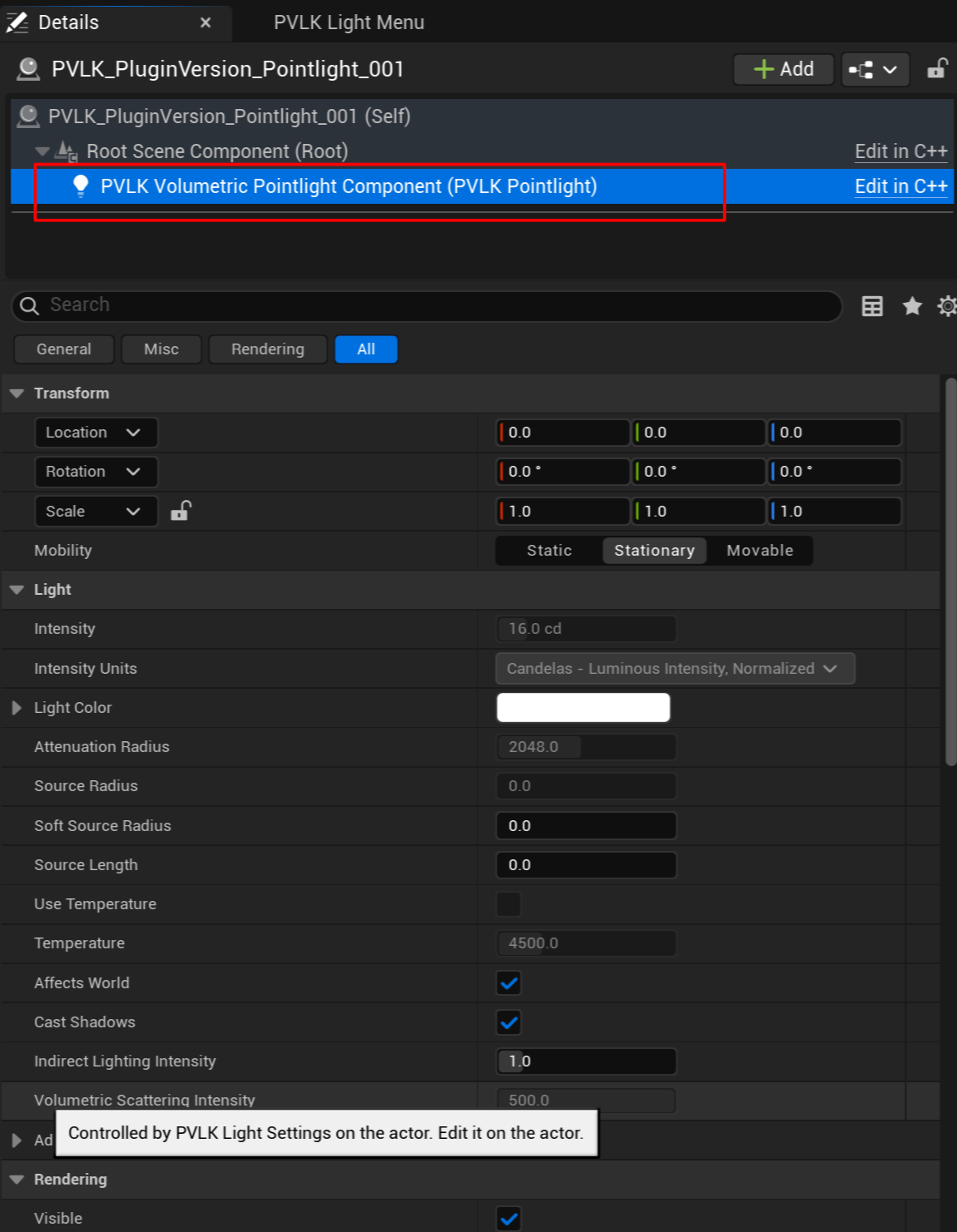
PVLK Light Duplication
2. When you've adjusted all the settings you want, click on the
button. All of the settings will carry over to your new blueprint,
including things like rotation (except pointlights) and the custom icon (if changed) will be duplicated. Even applied assets
like Light Function Materials and IES Textures can be carried over to the new blueprint (These types of assets can be
access through the Light Component on the PVLK Actor). If the
Auto Name and Auto Folder Light Assets
box was checked on the PVLK Light Menu panel, the blueprint will be automatically named and saved
in the default folder structure. If it was not checked, then you will be prompted with a dialog to
save it wherever you want, with any name you want. Full customization at your fingertips.
The 3 Light Types
PVLK ships three volumetric light actors; Pointlight, Spotlight, and Rectlight. Each one is fully customizable and can be saved to the Content Browser to be accessed in the Light Library.

Mobility and Icons
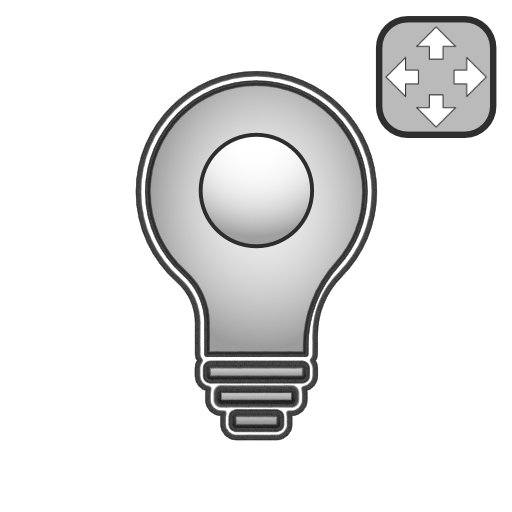
Lights follow standard Unreal mobility rules: Static lights bake, Stationary lights bake shadows but allows live color/intensity, Movable lights are fully dynamic. PVLK lights show a distinct "arrows" icon when Movable so you can know the mobility of your light at a glance; set your Custom Icon Texture with any .png or .jpg.
In order to change the shape or size of the lights at runtime (anything that alters Attenuation Radius, Inner Cone Angle and Outer Cone Angle), you must set the mobility to Movable. If you're only changing things like the intensity or color, then it can stay at Stationary. If you are baking the lights, set them to Static. You won't be able to change any of the light's settings at runtime when the mobility is set to Static.
Base Light Settings
All of the light types - Pointlight, Rectlight, Spotlight - come with a base PVLK_PluginVersion
blueprint stored in the plugin's content folder. This is so you can easily add a light to the level from the
Light Library. Tyring to override the name by clicking the folder icon
 gives you a warning that it's a protected blueprint. This is to ensure that you can always have a base blueprint
to work off of until you start to create your own blueprints. Below is the typical settings right out of the box for a
Pointlight (similar for Rectlight and Spotlight), and serves to have usable volumetrics from the get-go.
gives you a warning that it's a protected blueprint. This is to ensure that you can always have a base blueprint
to work off of until you start to create your own blueprints. Below is the typical settings right out of the box for a
Pointlight (similar for Rectlight and Spotlight), and serves to have usable volumetrics from the get-go.