Panel Reference
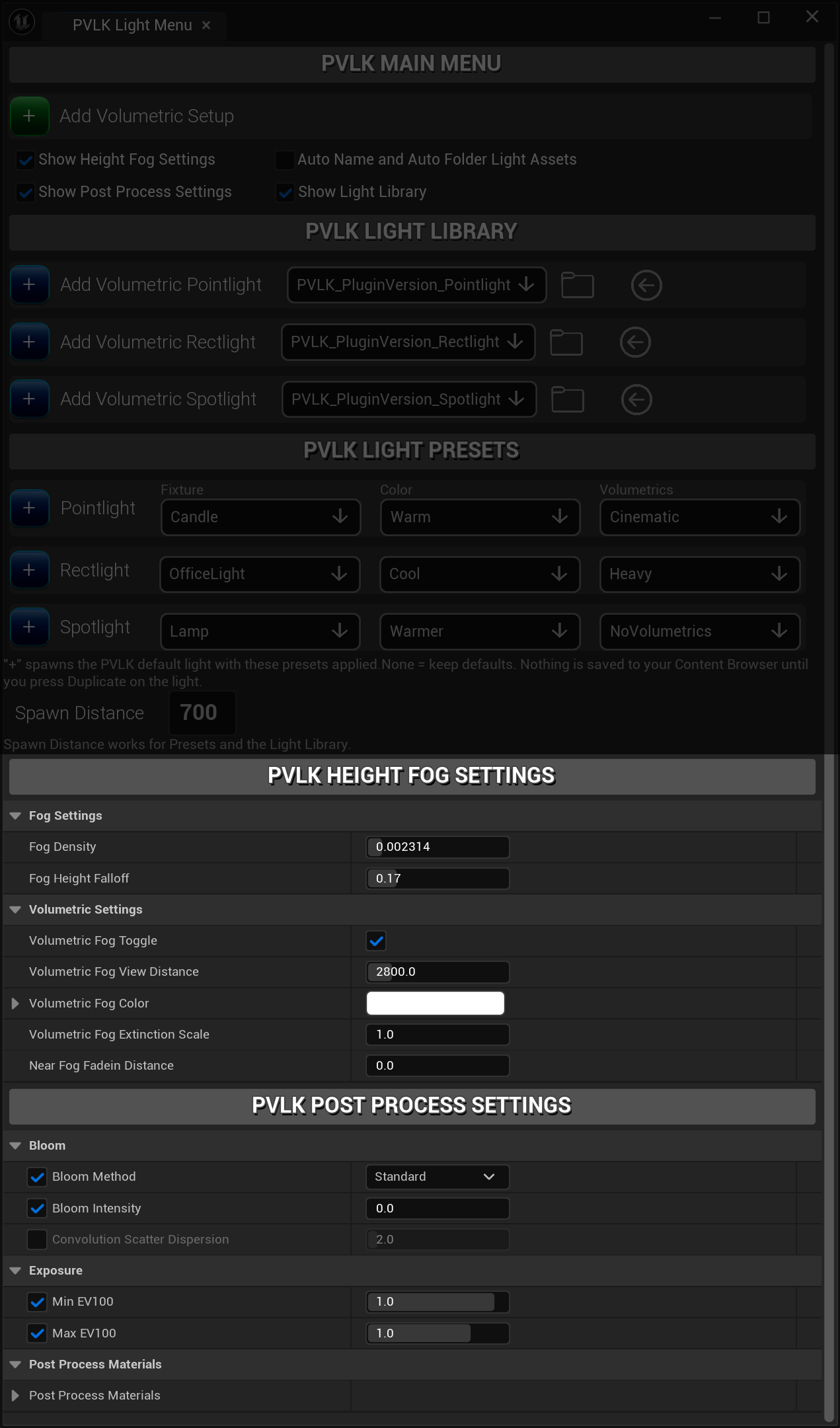
All the Controls of the PVLK Light Menu Panel
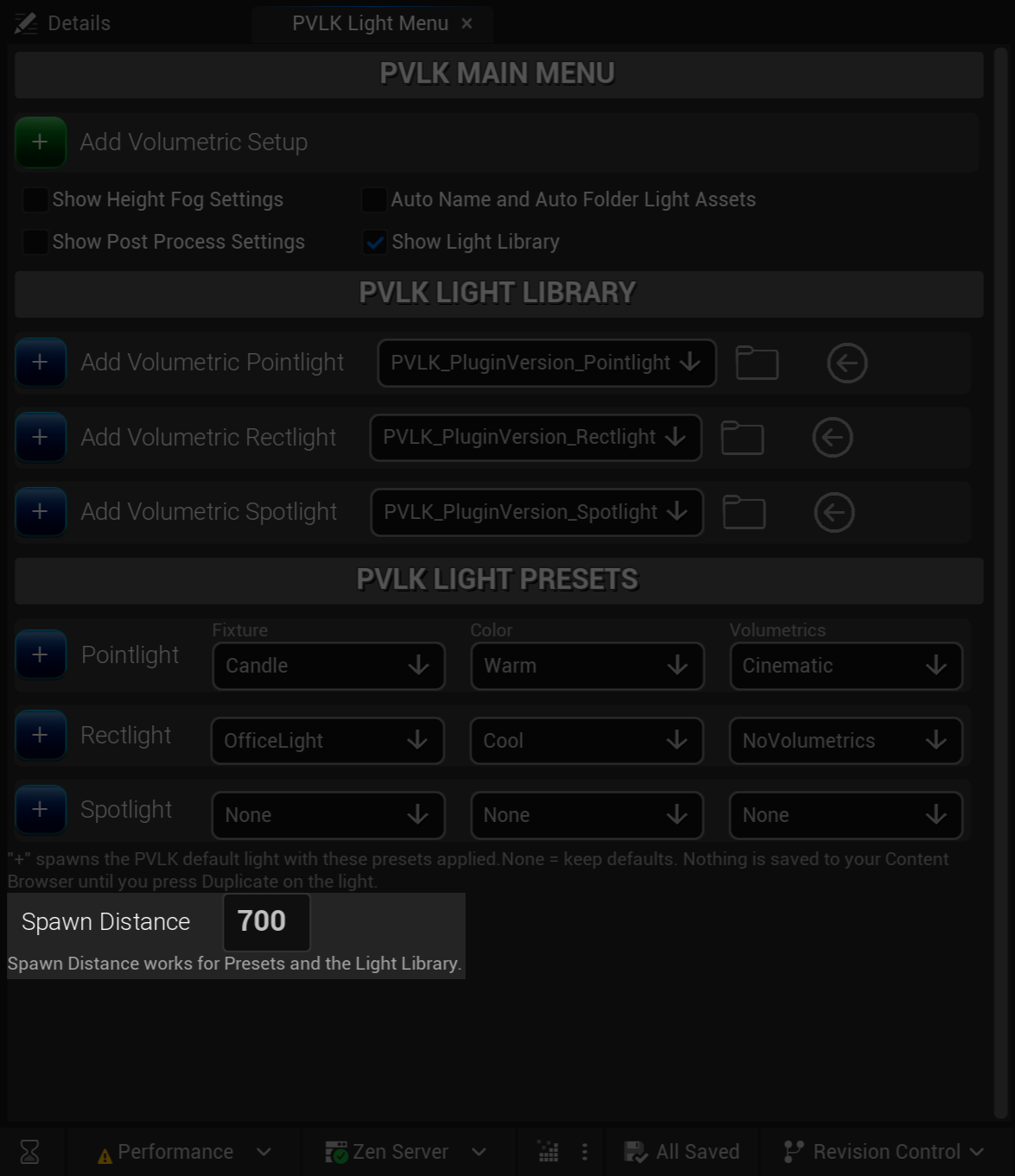
Full PVLK Light Menu Panel
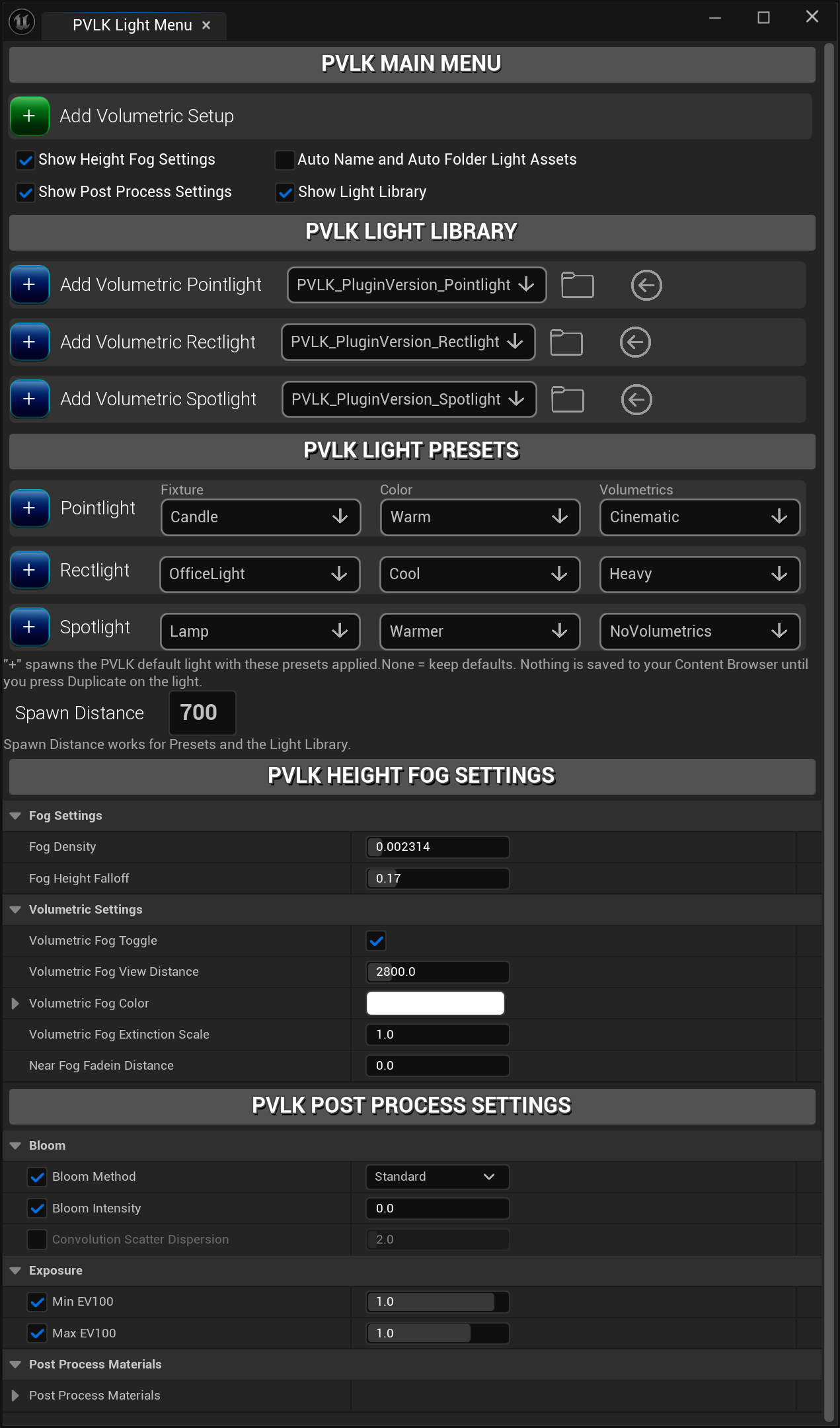
Add Volumetric Setup
Spawns the tuned Exponential Height Fog and Post Process Volume, labeled and filed in the outliner. If a PVLK setup (or a default engine fog/post process) already exists, PVLK asks before replacing anything, and one undo restores it to how it was before.
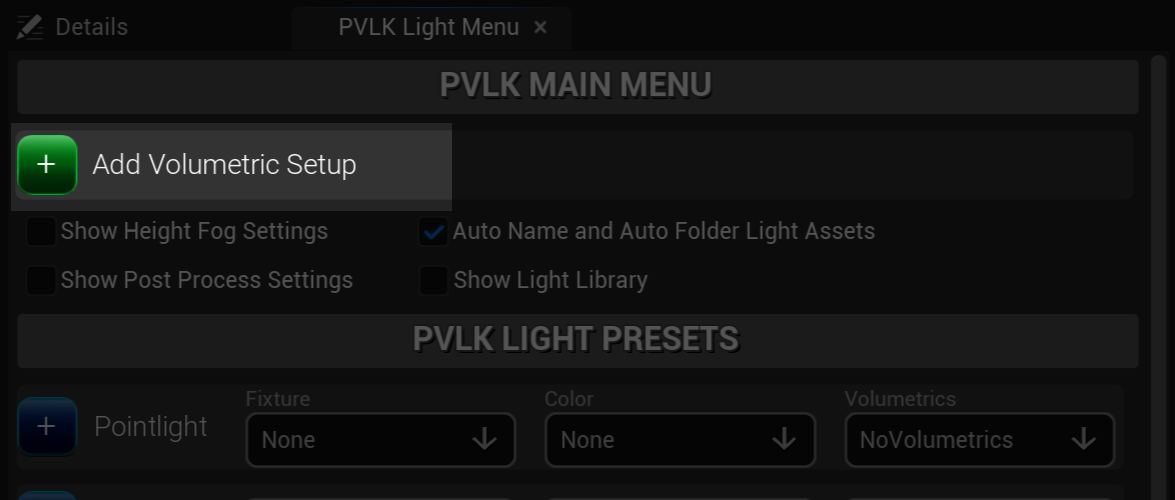
Show Height Fog / Post Process Settings
Off (both by default): Toggles the embedded settings panels at the bottom of the menu, so you can fine tune fog density, bloom, and exposure without hunting the actors down. Your choice persists between editor sessions.
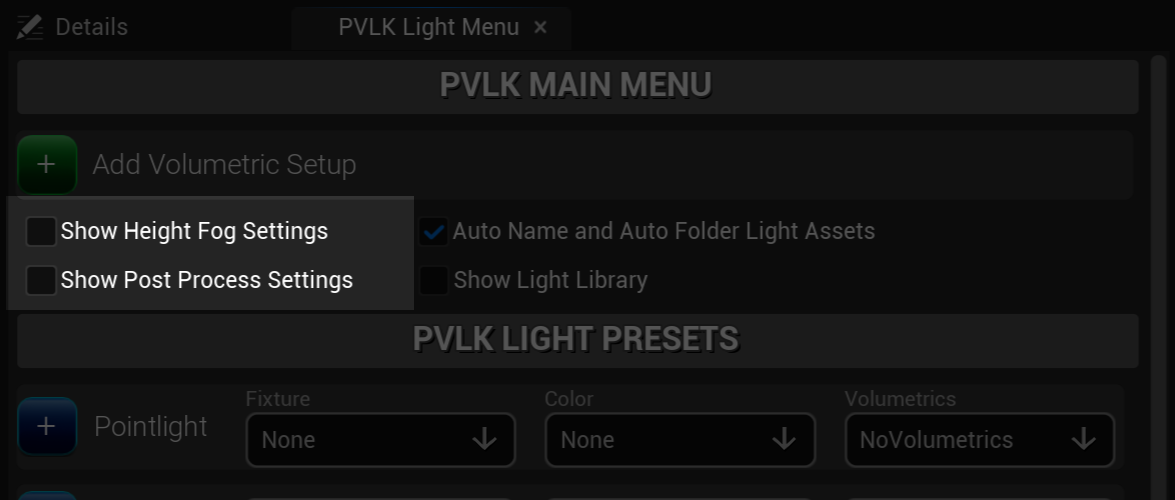
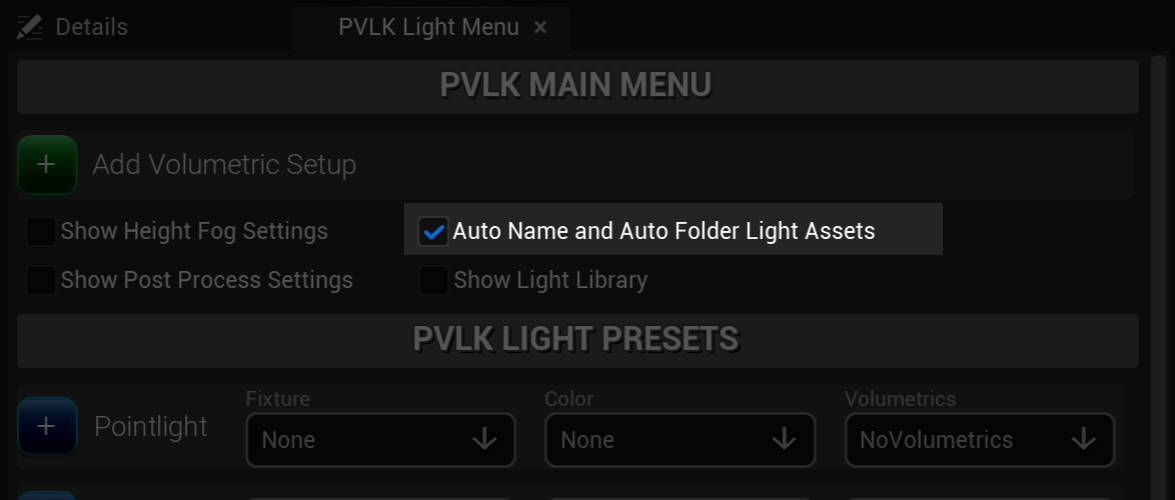
Auto Name and Auto Folder Light Assets
On (by default): Duplicated lights are named and filed for you, no dialogs.
Off: You get a save dialog with full control, per-type folder memory (the last folder for the light type is
saved in memory), and the rename/folder buttons  appear next to each
Light Library row.
appear next to each
Light Library row.
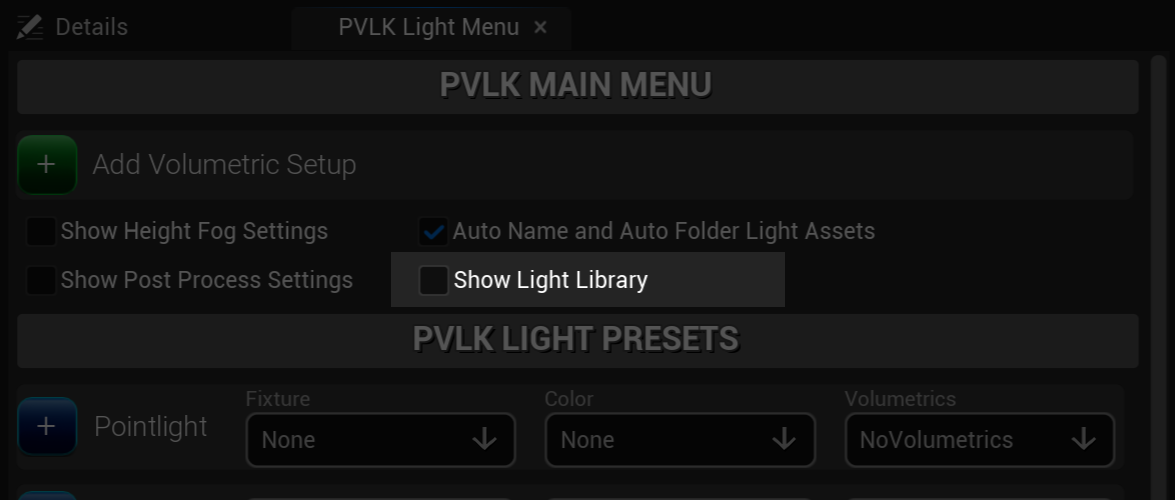
Show Light Library
Off (by default): Keeps the Light Library hidden. Best when only using the presets. (Optimal for quickstart)
On: You get every PVLK actor blueprint light type that exists in the Content Browser in each drop down menu.
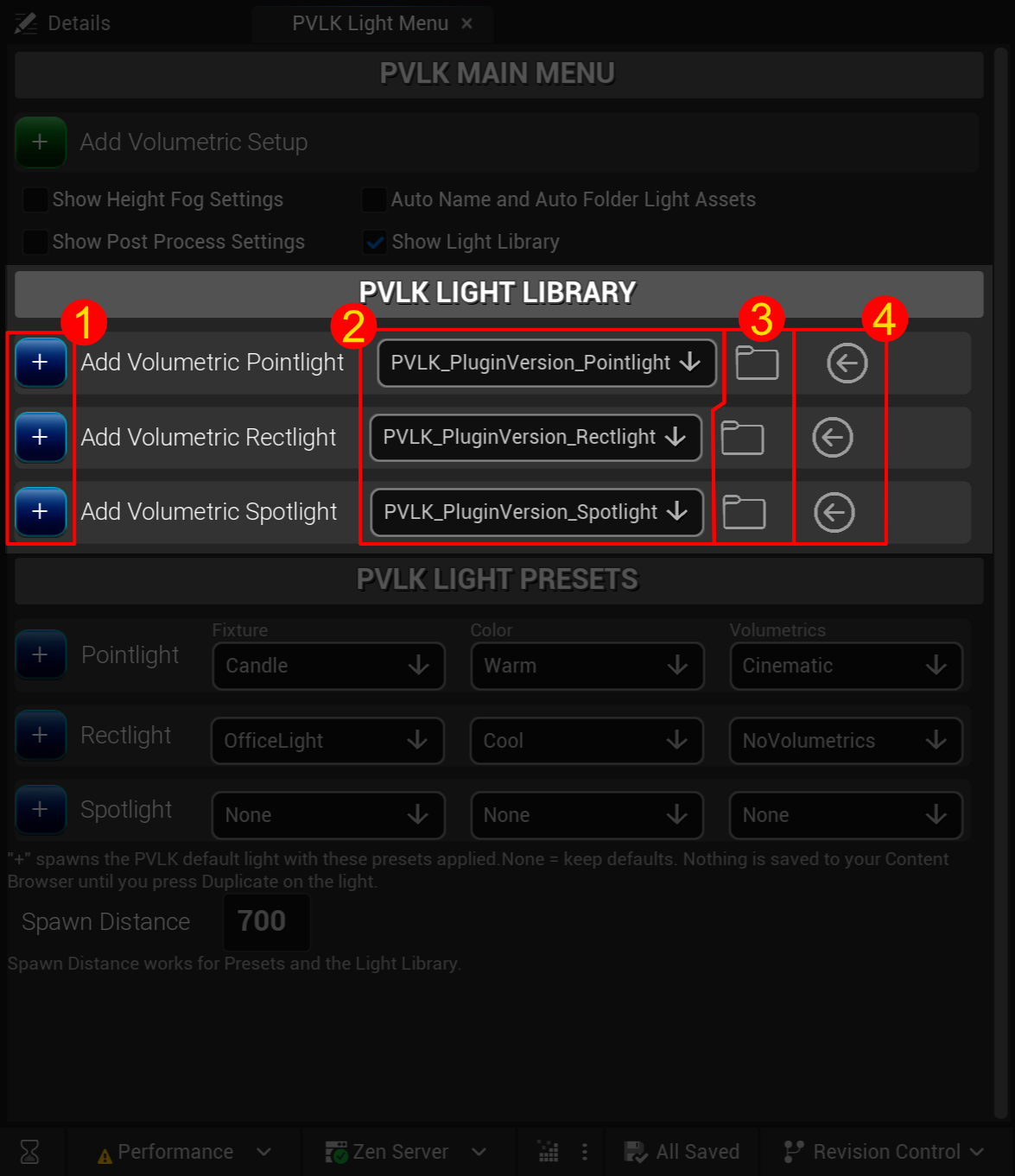
PVLK Light Library
1. Button to add your selected light type to the level. Uses the Spawn Distance.
2. Drop down menu, per light type, that is a PVLK light actor blueprint, and acts as a
filter on only those blueprints. Shows every blueprint, project-wide, from the Content Browser.
3. Folder icon that allows you to rename/re-folder the selected blueprint in the adjacent drop down menu.
The folder icon shows when the Auto Name and Auto Folder Light Assets check box is unchecked.
4. Arrow icon  auto-navigates to the selected blueprint in the Content Browser.
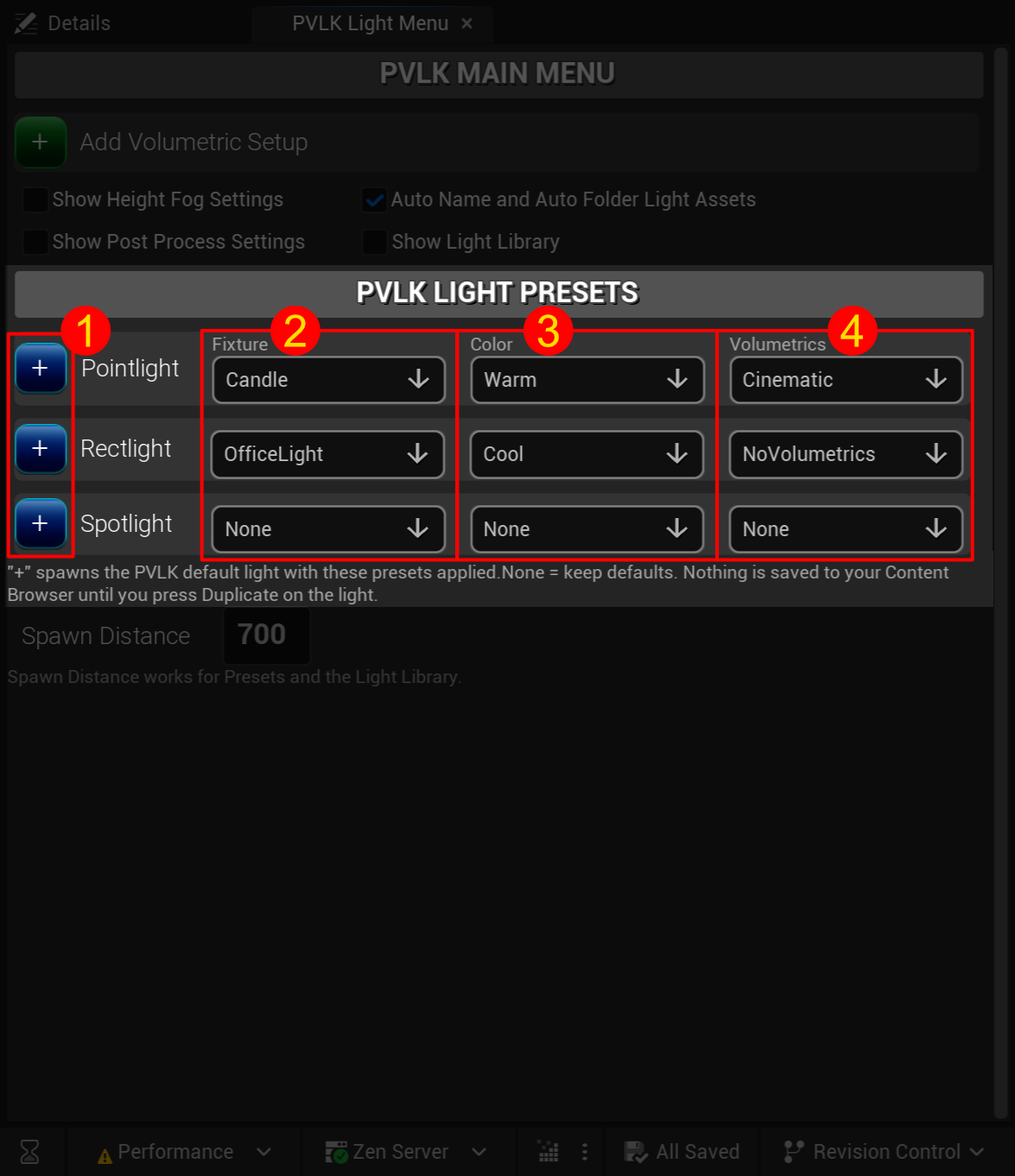
PVLK Light Presets
1. Button to add your selected preset light to the level. Uses the Spawn Distance.
2. Fixture drop down menu that can be light type specific (Candle or Lightbulb for Pointlight, for example).
3. Color drop down menu that gives the light color (Warm or Cool, for example. Based on Color or Temperature Color in Kelvins).
4. Volumetrics drop down menu that sets the level of volumetrics on your light (Cinemetic or NoVolumetrics, for example.).
Spawn Distance
How far in front of the camera the new lights spawn, in Unreal units. Applies to both preset and light library spawning, and persists between sessions. Comes with a slider that goes from 1-5000 units. You can manually enter in a number or use the slider, your choice. Default distance is 700 units. You can turn the slider on or off in the Project Settings, by default it's turned ON.
Height Fog & Post Process Settings
The embedded detail panels edit the placed PVLK volumetric setup actors live. Fog density, height falloff, volumetric view distance and more can be changed without ever leaving the menu. These settings can be shown by toggling them on or off at the top of the light menu. For more detailed information, check out the Volumetric Setup section.