Volumetric Setup
Exponential Height Fog and Post Process Volume
Exponential Height Fog
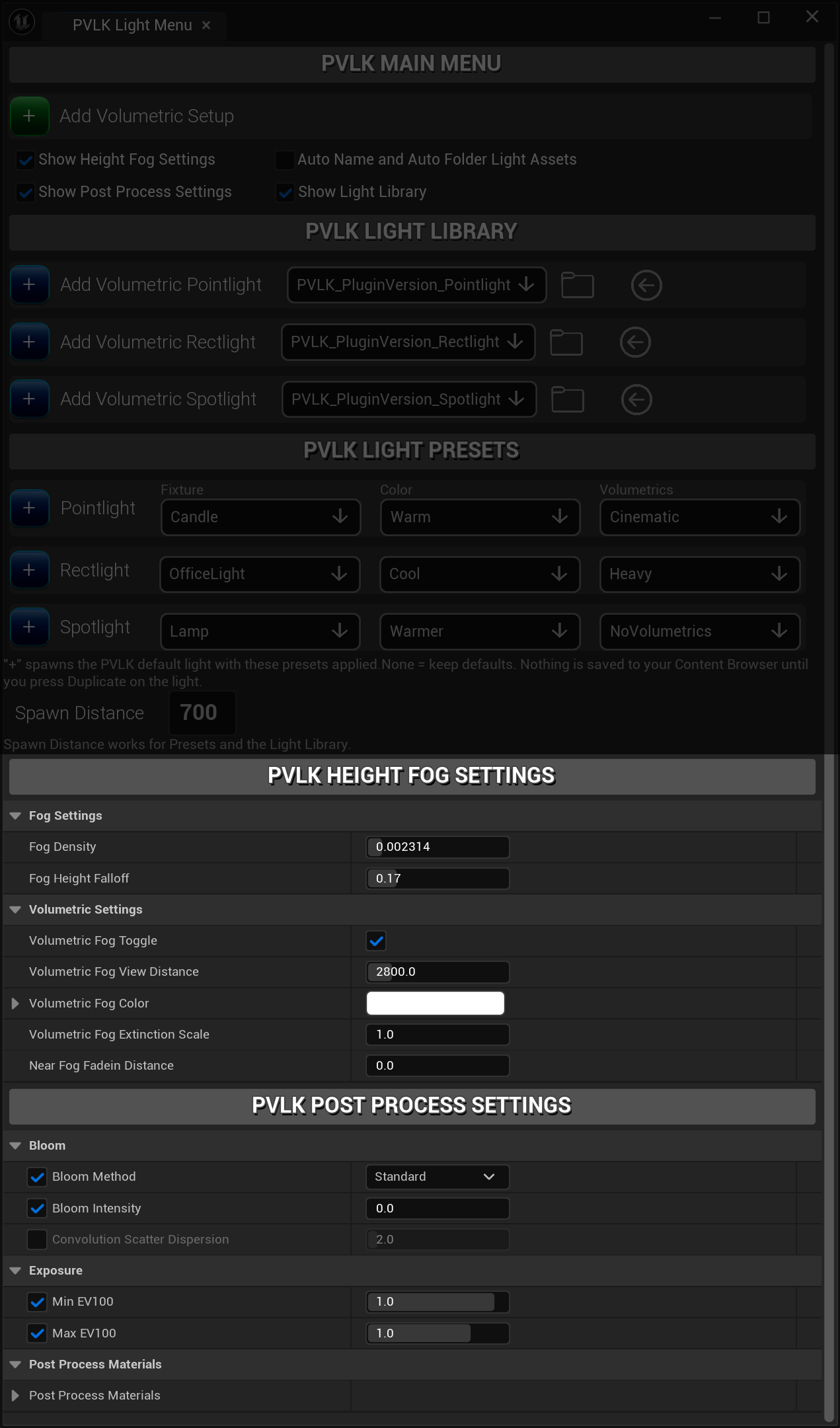
Overall Fog Settings
The default Exponential Height Fog settings are set in such a way that allow for minimal environmental fog, yet make the PVLK light's volumetrics stand out. This is why each of the lights have the volumetric scattering intensity set to 500 out of the box. The current default is great for interior scenes where fog doesn't really need to show, but can help give the lights a cinematic look. Unreal Engine sets volumetric scattering intensity to 1 by default, but we're overriding that to allow the volumetrics, per light type, to pop. If you do decide to increase the environmental fog, potentially for an exterior setting, you will need to tune down the volumetric scattering intensity on all the lights, because if you don't, the light's volumetrics explode and overwhelm the visuals. It's best to plan your fog amount ahead of time according to your environment.
Volumetric Fog View Distance
For more information, see the section on Volumetric Fog View Distance under the Cvars page.
Post Process Volume
Infinite Extent (Unbound)
This is to let your PVLK Post Process Volume either cover the entire level (infinite) or be a sizeable box. The box extent settings will show once this is unchecked. If you want to make the default always be bounded, then set the Infinite Extent (Unbound) setting false in Project Settings. This way, any time you spawn in a PVLK Post Process Volume through the Add Volumetric Setup, the default is set to be bounded. If you need to change it in real time, then just change it on the panel here. When you make it bound, the PVLK Post Process Volume is located at the world origin, 650 units up.
Bloom
The default Post Process Volume settings for bloom is set to 0 for PVLK. This is to help with optimization right out of
the box, as it can decrease performance slightly when using it. When choosing Convolution bloom, Unreal Engine notes that this is
too expensive for games, so use caution. Standard is what games typically use when using bloom.
Exposure
When it comes to exposure, this is set 1:1 by default, to prevent the human eye adaptation effect. If it is desired, or you need
to have a lower light threshold, this can be changed to suit your needs. Unreal Engine's default is
Min EV100 -10 and Max EV100 20.
Post Process Materials
This is a commonly used section if you tend to use Post Process Materials. Some of the use cases for using
Post Process Materials,
is for object outling/highlighting, shader effects (like dithering or cartoon outlining), and many more useful
scenarios. To read more about it, check out Unreal Engine's documentation on
Post Process Materials .
.